Google Drive Integration
Export your Docubee workflow documents directly to Google Drive: here’s how it works!
Google Drive is a web-based file storage and synchronization service that helps manage and store documents. Docubee's Google Drive integration allows you to send documents from a Docubee workflow directly to your Drive.
Let’s set up the integration.
Before You Begin
There’s a few things you’ll need to get started:
- A Docubee account – you can go to https://docubee.app/signup to create a free account.
- Access to Google Drive – you’ll log in to your Google Drive account through Docubee, so make sure to have your Google account credentials ready.
Note: You can find more information about logging into Google Drive here.
Create the Workflow
- Log into your Docubee account at https://docubee.app and create a new workflow.
- Edit the workflow in the workflow builder, give it a name, and add the following tasks:
- Add a Web Form task
- Add an Export Document task
- Connect to Google Drive
- Publish
1- Add a Web Form Task
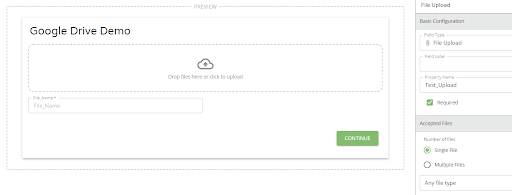
The first task in the workflow is a web form. You’ll need to create two tasks within this web form:
- File upload
- Create a file upload field and give it a property name of Test_Upload.
- You can leave the rest of the options as their default setting.
- Single-line text
- Create a Single-Line Text field and give it a property name of File_Name.
- This is where the user will enter the document’s file name that will be displayed in your Drive.

2- Add an Export Document Task
For the second task, choose an export document.
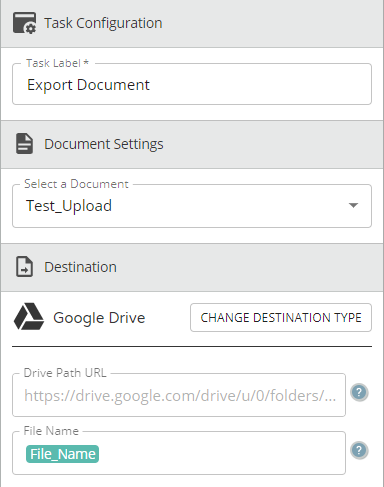
- Select the document from the previous web form, Test_Upload.
- You’ll set up the destination setting in this task in the next section of this article.
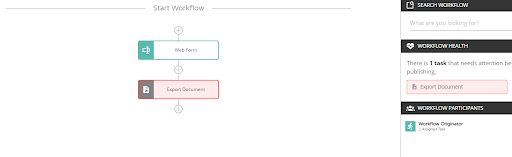
Your workflow should look like this in the workflow builder:
3- Connect to Google Drive
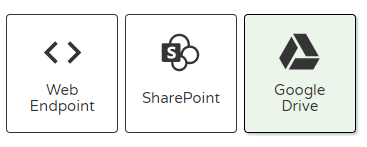
- In the export document task inside the destination section, click on Google Drive.
- Then, click the Connect to Google Drive button, which will open the modal and prompt you for your Google account credentials.
- After entering your username and password, you’ll be prompted to accept permissions that Docubee is requesting. If you agree and wish to continue, click Accept.
- Now that your Google Drive account is configured, let’s choose where to send your document.
- If you want the file to be saved in a particular folder on your Google Drive, paste that path in the Drive Path URL.
- If you leave it unchanged, it will default to the root of your Google Drive, and will automatically load documents in the main directory.
- Be sure to fill out the rest of the fields. If you added a field for File_Name in step 1, you can click on the File Name field and select it.
4- Publish
When this is done, you are ready to publish your workflow.
- Click the green Publish button in the top right corner of the workflow builder.
Next Steps
Now that your workflow task is complete, you can run your workflow, upload a document, and then send it to Google Drive. When you log in to Google Drive, you should see your document in the location that you configured in the export document task.
In this example, you used an upload field in a web form to provide a document, however you can send documents to Google Drive from other Docubee actions as well, including:
Related Information
All About Workflows (Quick Reference)
Export workflow documents to:
Need more help getting set up? Contact us for assistance from our customer support team or register for Office Hours.