Send Workflows and Tasks Using Dynamic Delivery Methods
View our Pricing & Plans for a detailed list and comparison of features available in each plan.
You have built your workflow and are ready to share it with participants. How do you do that? What are your options?
Docubee automatically generates shareable links and QR codes. It supports several dynamic delivery methods - email, SMS text, and bulk run. Simply drop the shareable link/QR code into your favorite delivery method.
Additionally, you can add the delivery methods (email, SMS text, or bulk send) as steps into your workflows that automatically notifies participants when it’s their turn to participate.
Do you need to share a workflow task link with a participant who may have lost track of theirs? Docubee can generate a sharable link.
Before You Begin
See Create a Workflow for information on building a workflow.
Workflow Link and/or QR Code
Embedded URL
Docubee automatically generates a unique URL for each workflow. It can be used anywhere a link can be added. Use the embedded URL on websites, landing pages, within emails, social media posts, or any platform your customers use.
QR Code
Docubee automatically generates a unique QR code for each workflow. QR codes are essentially a digital barcode that users can click or scan using a smartphone. Display the QR code digitally or on a physical piece of paper for participants to scan.
Access the Workflow Link and/or QR Code
- Log in to Docubee.
- On your dashboard, click Workflows
 in the left toolbar.
- Select the workflow to share by doing one of the following:
- In the card view, click the Run button.
- In the list view, click the Run or Share button.
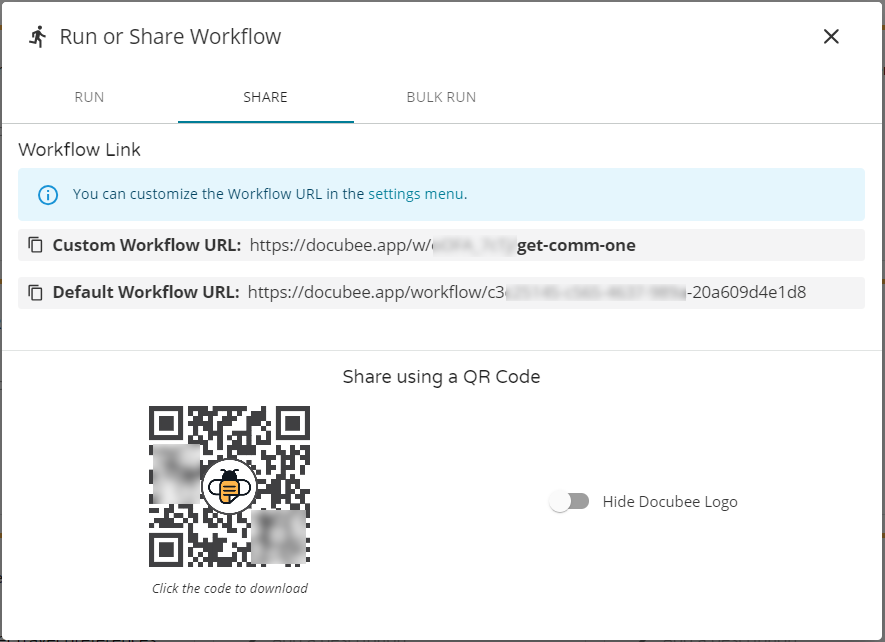
- The Run or Share Workflow modal displays.
- Click the Share tab.
Note: If you have a customized workflow URL, that is also available along with the default workflow URL.
- To share a:
- workflow link, first click on the URL to copy it.
- QR code, first click on the code to download it.
Note: Turn on the Hide Docubee Logo toggle to remove the Docubee logo from the QR code.
- Paste the workflow link and QR code where your participant can access it or send it to your participant in an email, SMS text message, or place it on a landing page.
Access a Workflow Task Link
To send a participant the link to their task:
- Log in to Docubee.
- On your dashboard, click Workflows in the left toolbar.
Note: See Workflow Instance List for more information.
- Select the workflow with the task to share by doing one of the following:
- Of the workflows that have a running instance (i.e., in progress), click the required workflow to view the workflow instance list.
Note: You cannot share a completed or canceled workflow.
- At the end of the workflow to share, click the three vertical dots icon and select View Instance List.
- From the In Progress tab of the workflow’s instance list, select the workflow instance to share and view its information on the right.
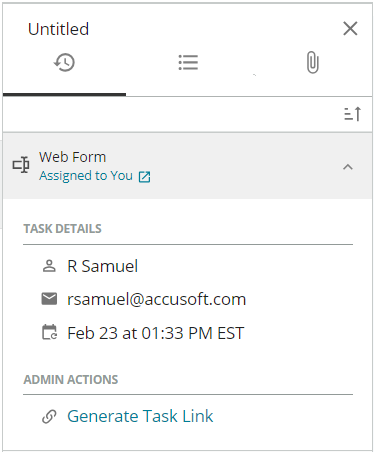
- For the participant with whom you want to share the task link, click Generate Task Link in the right section under Admin Actions.
Note: Only admins can access Admin Actions.
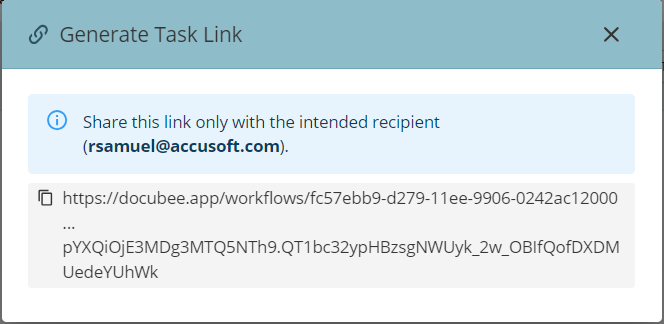
- In the Generate Task Link modal, click the link to copy it to the clipboard.
- Paste the link where your participant can access it or send it to your participant in an email, SMS text message, or place it on a landing page.
Delivery Methods to Share & Start Workflows
Here are the available communication options for sharing with participants and starting workflows.
Email
To send workflows via email, you can:
- manually copy and paste either a QR code or unique URL into your own internal email.
- also add a step within your workflow to automatically generate and send an email to the participant when it is time to complete their assigned task. (Recommended)
See Add Email Notifications in a Workflow for more information.
In your email notifications created in Docubee, you can customize the message and company branding.
SMS Text Messaging
Some participants prefer to receive notifications via SMS text. This is an add-on feature. To implement SMS text messaging, contact Sales. You can send the SMS text message instead of or in addition to the email notification.
You can build into your workflows the ability to send the unique URL/QR code via an SMS text message.
The text messages sent from within Docubee will contain a link to the participant’s next step in the workflow.
Bulk Run
The bulk run feature allows you to send your workflow to multiple people at once.
- You can upload a CSV file with the participant’s email addresses to receive the workflow from the Run or Share Workflow modal.
- The first row of the CSV file represents the properties on the workflow's start form. Each row after represents an instance containing the data submitted in the CSV for these properties.
- The property fields can be of any data type.
- If you don’t have a CSV file and would like a sample, click the Download a sample link in the Run or Share Workflow modal. Modify it to suit your requirements.
Known Limitations
Not all fields available on a web form can be used in a bulk launch, e.g., image fields.
Related Information
Check a Workflow Status
Download Workflow Documents
Create a Cancel Workflow (Event Task)
Publish a Workflow
Customized Workflow URLs
Additional Resources
Need more help getting set up? Contact us for assistance from our customer support team or register for Office Hours.
 in the left toolbar.
 Note: If you have a customized workflow URL, that is also available along with the default workflow URL.