View our Pricing & Plans for a detailed list and comparison of features available in each plan.
Connect your apps and automate workflows with Zapier! Instantly connect Docubee with thousands of apps to automate your documents and forms. Set triggers for important events in your solutions for Zapier to use to begin a workflow instance and manage the workflow.
With Docubee connecting to Zapier at the workspace level, your teams can connect to other applications they need for their business processes.
Before You Begin
You need to be on a plan that includes API access.
Create a Zapier account if you don’t already have one.
Invite your Docubee users to each workspace and assign them as a member or workspace admin. The Workspace Admin role will be able to generate the API access token which will permit Zapier to access the workflow, select a template, and retrieve the fields for easy mapping.
See Add, Update, and Remove Workspace Members for information on member management.
In the left navigation bar, select the workspace to which you want to create an access token.
Click Access Tokens.
Select the Add API Token tab.
In the Token Name field, enter a name for this API connection to Zapier.
Choose the permission level.
If you are starting workflows from Zapier you will need the List workflows permission.
If you are using Zapier triggers in your workflow you will need the Manage Zapier triggers permission.
Click Generate Token.
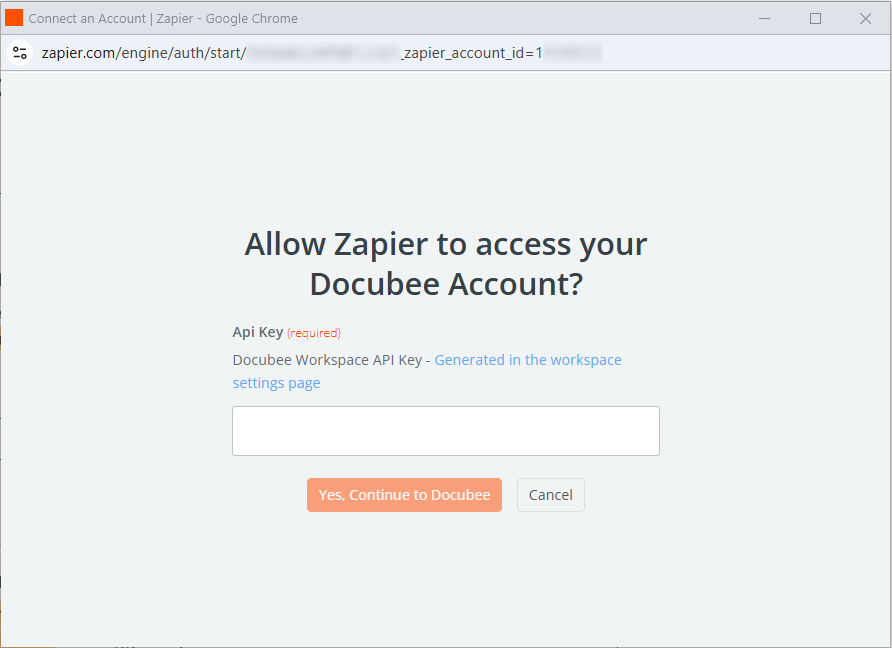
Copy the new generated token to your clipboard by clicking the copy icon or use shortcut keys on your keyboard. You will need it when connecting Zapier to your Docubee account.