Edit .docx File (Workflow Task)
View our Pricing & Plans for a detailed list and comparison of features available in each plan.
You can provide a .docx file for participants to view, suggest changes, or edit (based on participant permissions) in a running workflow. Additionally, you can assign multiple participants with different permissions to collaborate on editing the same .docx file in a workflow.
Before You Begin
You need to create a workflow.
Create an Edit .docx File Task
To create and configure this task:
- In the workflow builder, click the + above or below an existing step.
- In the right-side panel’s Add Task, choose the User Task tab, then Edit .docx File.
- Click on the new task.
- In the General Configuration tab:
- Task Label - Rename the default task label from “Edit .docx File” to something that is meaningful and descriptive to help identify the task.
- Add Instructions For The User - Provide the participant with custom instructions in the left-side panel under the collapsible Information tab when they arrive at that task.
- Click the Add Instructions for the User button to open the Custom Instructions editor.
- Enter your custom message and click Close Editor.
- + Add Participant - This can be a multi-participant task and you can manage access permissions for each participant.
- Click + Add Participant.
- From the list of configured participants who will be able to access this task, select the participants to include and assign them the necessary document and task permissions.
- In the Document Settings tab, provide a DOCX document file for the assignee to edit, view, or comment. Specify the document in one of the following ways:
- Click Upload Document or drag & drop a document – Upload the file (click the Upload Document button to select a file or drop a file onto the box).
- Select a workflow document name from the dropdown – The Select a Workflow Document dropdown lists the names of available documents that have been uploaded in a previous workflow step (such as a web form task with a file upload field or a generate document task). The document’s name will also be used as this document’s property name so that you can reference it in later workflow steps.
- Select a workflow document from your Docubee Documents Library.
- In the Action Buttons tab, add buttons to the task, set their behavior, and position.
- Click on a button to open its Button Settings, configure it to suit your specifications, and click Close Button Settings.
- Click + Add Button to add an additional action button and configure it.
Note: See Delete Action Button for information on deleting an action button.
- In the Reminders tab, you can add a Task Reminder or Escalation Reminder. See Reminders and Escalations in Workflows for more information.
- After you’ve configured the task, at the upper-right corner click <- Return to Workflow Model.
Participant Permissions
There are two types of permissions for participants in the Edit .docx File task:
- document permissions and
- task permissions.
Click the gear icon to toggle open and manage the document and task permissions for each participant.
Document Permissions
The document permissions are:
- Edit – Participants can make edits and comment on the document.
- Suggest – Participants can comment and suggest edits to the document. Actual editing is disabled.
- View – Participants can view the document. Editing and suggestions are disabled.
Task Permission
The task permission:
- Complete task – Participant can complete the task. Other open sessions of the task will be terminated and those participants will be notified via a popup that the task has been completed.
- At least one participant must be granted this permission.
- Multiple participants can have this permission.
- A participant without this permission will not be able to complete the task and will not be presented with the action buttons you’ve configured for this task.
An action button will display in the footer and allows the workflow to progress to the next step.
You can add multiple action buttons. For each action button added, a separate path will be created in your workflow so that you can design the behavior in each specific case.
Some common uses of action buttons:
- Support multiple paths - Your user's decision can impact the next steps in your workflow. Adding multiple buttons allows you to have different behavior based on the button a user chooses when completing their task. That allows for multiple paths (branches) of completion of the workflow. For example, if a request is accepted it would take one path forward and if rejected would take a different path. Watch the Using Conditional Logic video!
- Link to a previous task - Create a "Back" button by using a Link task that connects to a previous part of the workflow.
Button Behaviors
The action buttons for the Edit .docx File task can be either of the following:
- Submit – This button will only be available when all required input is completed and validation has passed. The values will be submitted and saved, and the workflow will continue to the next task.
- Continue without Submitting – This button will always be available. All input will be ignored and will not be submitted while continuing to the next task in the workflow.
Button Positions
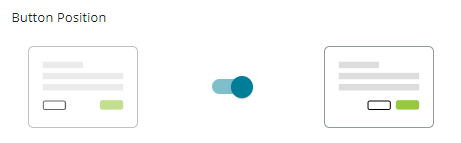
When you add a second button you will have to choose a button position. The document will reflect your choice.
 The first two buttons are displayed individually.
The third button onwards will automatically be grouped under a More Actions dropdown located on the lower-left corner of the document. This design overrides specified button position settings and provides easy access to all additional document actions.
The first two buttons are displayed individually.
The third button onwards will automatically be grouped under a More Actions dropdown located on the lower-left corner of the document. This design overrides specified button position settings and provides easy access to all additional document actions.
- Click on a button to open its Button Settings.
- At the upper-right corner, click the trashcan icon to delete the action button.
- Click Close Button Settings to return to the Action Buttons tab.
Edit .docx File Task in Workflow Runtime - The Participant's Experience
- When the running or in-progress workflow reaches the Edit .docx File task, the participant will see the label of Edit .docx File task as well as a Continue button, alerting them that they need to edit a .docx file for this task.
Note: The participants editing permission will already be set and visible in the document editor’s toolbar.
- Click the Continue button to open the document in the editor.
If custom instructions were set, it will display in the editor’s left side panel Information tab, which can collapse/expand.
- Modify the .docx file in the editor which supports usual functions, including inserting, resizing, and moving images.
- Type within the document to modify its contents.
- Use the menu bar and toolbar options to edit the document.
- Click Continue to save the document and end the task.
- If you have the permission to complete the task, when you click Continue you will be prompted with the message, “Submitting will complete the task for all users, even if they are still viewing the document. Are you sure you'd like to complete this task?”. Click Complete Task to confirm.
Related Information
All About Workflows (Quick Reference)
Types of Tasks (Workflows)
Additional Resources
Need more help getting set up? Contact us for assistance from our customer support team or register for Office Hours.
 The first two buttons are displayed individually.
The third button onwards will automatically be grouped under a More Actions dropdown located on the lower-left corner of the document. This design overrides specified button position settings and provides easy access to all additional document actions.
The first two buttons are displayed individually.
The third button onwards will automatically be grouped under a More Actions dropdown located on the lower-left corner of the document. This design overrides specified button position settings and provides easy access to all additional document actions.