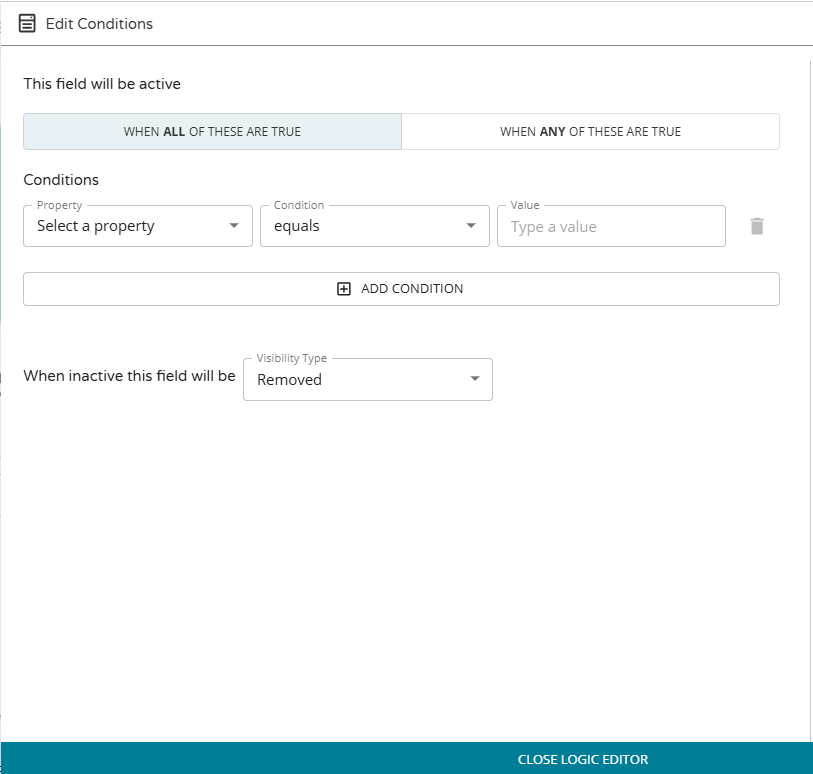
Edit Conditions Modal
View our Pricing & Plans for a detailed list and comparison of features available in each plan.
Conditional fields are available in Quick Signs and in some workflow tasks. Define when fields should appear on your document forms by setting conditional field rules.
After manually adding a field to a document, define its field settings. This includes choosing to show the field conditionally by turning on the Show Conditionally option.
Before You Begin
You need to create a workflow.
Show Conditionally Option
Note: In Quick Signs, radio button groups are excluded from being shown conditionally.
Set a field as conditional by turning on the Show Conditionally option and establishing its rules.
Turning on the Show Conditionally option displays the Add Conditions button. Click Add Conditions to slide out the Edit Conditions modal and define the property, condition, and field values. See Set Conditions for more information.
Note: On the field settings tab, the Add Conditions button label will change to Manage Conditions once you have added a condition.
Set Conditions
Set conditional field rules to define when the field should be visible on the document using the Edit Conditions modal.

- In the Edit Conditions modal, choose whether all or any one of the conditions need to be met for the field to be visible in the document by clicking one of the following:
- When all of these are true
- When any of these are true
- Define the condition. Every condition must have a specified property and value.A condition includes the following:
- Property – Select a property from the dropdown. These options are automatically pulled into the property picker.
- In Quick Signs and Fill & Sign workflow tasks:
- The properties you can choose are any Textbox, Date, Checkbox, or Radio Button Group existing on the current document.
- In Web Form workflow tasks:
- The properties you can choose are any dropdown or radio type multiple choice fields existing on the current form.
- Condition – Select a condition from the dropdown.
- In Quick Signs and Fill & Sign workflow tasks:
- A condition is a certain set of criteria that must be met for the field visibility to change.
- You can set these to "equals", "does not equal", "has any value", or "has no value".
- In Web Form workflow tasks:
- A condition is a certain set of criteria that must be met for the workflow to proceed in a logic branch.
- You can set these to "equals" or "does not equal".
- Value – Enter a value that the field’s condition must meet.
- In Quick Signs and Fill & Sign workflow tasks:
- You can designate what value you would like by typing within the text box or choosing one of the predefined options.
- The value for this field will automatically be compared to values entered in the other fields as the document is being filled out. This value is case sensitive.
- In Web Form workflow tasks:
- You can designate any value you would like by typing within the text box.
- The text entered into this field will automatically be compared to values entered in your webform when the workflow is being run.
- Click Add Condition to add another condition.
Note: Delete a condition by clicking delete (trash can icon) to the right of it.
- After adding all the conditions, determine how to manage an inactive field. A field will be inactive if the condition is not met. The visibility type determines how the inactive field will take up space in the document or form.Select Visibility Type from the dropdown.
- In Quick Signs and Fill & Sign workflow tasks:
- Removed – The inactive field is not displayed on the document and will be completely removed.
- Read only – The inactive field is displayed on the document in a read-only state with a value, if present.
- In Web Form workflow tasks:
- Removed - The inactive field is not displayed on the form and will be completely removed from the form, and will re-flow the field when it appears.
- Hidden - The inactive field will show white space where the field should be and will not re-flow the fields when it appears.
- Disabled - The inactive field will show in a disabled state.
- Click Close Logic Editor to close the modal.
Next Steps
After closing the Edit Conditions modal, resume/continue your document preparation.
Related Information
Prepare Document (Quick Sign)
Fill and Sign Task (Workflow Task)
Web Form (Workflow Task)
Add an Image to a Web Form (Workflow)
Combine Documents (Workflow Task)
Additional Resources
Need more help getting set up? Contact us for assistance from our customer support team or register for Office Hours.