Prepare Document (Workflows)
View our Pricing & Plans for a detailed list and comparison of features available in each plan.
Prepare a document in your workflow by adding fields on the document and defining their attributes. You can do this in the following ways:
- Auto-scan and customize - Automatically scan your document to detect fields and then manually customizing it as needed.
- Manually add fields - Manually place fields in the document.
Workflow Tasks that Support Document Preparation
The following workflow tasks allow preparing documents during task configuration or workflow execution:
- During workflow task configuration:
- Fill and Sign Task (Workflow Task)
- Combine Documents (Workflow Task)
Note: You need to upload a document directly to this task before you can configure its fields. Use the Drop File Here or Click to Upload button for it/to do so.
To configure fields, upload a document directly to this task using the Drop File Here or Click to Upload button.
- During workflow execution:
- Create Document Form (Workflow Task)
Note: When the workflow executes and reaches the Create Document Form task the participant can prepare the document using the field types and field settings available for workflows with the following exceptions:
- Radio Button field type is not available for this task
- Show Conditionally field setting is not available for any field
- Request File field settings cannot be edited at this time
- You cannot prefill fields with existing workflow information.
Before You Begin
You need to create a workflow.
Review Field Types and Field Settings before preparing a document.
Field Types
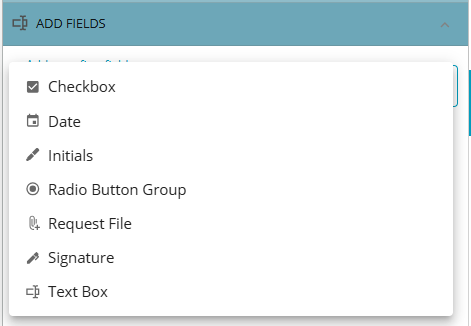
Field types determine the type of data a participant can enter into the field. You can pre-fill fields and choose whether to make them editable. Available field types are:
- Checkbox - Allows the participant to select one or more checkboxes.
- Date - Allows the participant to choose a date from the standard calendar date picker widget. You can pre-fill the date field and choose to allow/restrict the participant editing it.
- Initials - Allows the participant to add their initials.
- Radio Button Group - A radio button group consists of two or more radio buttons. It allows the participant to select from the multiple choices using the radio buttons offered.
- Request File - Allows the participant to upload a single file.
- Signature - Allows the participant to add their signature.
- Text Box - Allows the participant to enter text in the field. It is a versatile field type. You can choose to pre-fill it or not. The text that is input must conform to the data type you set. It can be Currency ($ sign is added in the field), Email, Number, SSN/TIN, Phone, Text, URL, Zip Code.
Field Settings
Access field settings by clicking on a field. Field setting options vary depending on the field type you select. Click the question mark next to some settings to read more about it. After you’ve defined a field, click Close Field Settings at the bottom of the tab.
While most field types have the following settings, Text Box, Date, and Radio Button Group have additional settings specific to their functionality.
- Form Type - Select the field type from the dropdown. Even after placing the field on the document, you can change the field type by selecting another type from the dropdown.
- Field Label - The descriptive label displayed on the document next to the field. It gives it context and helps the participant understand what information to enter. Modify the default label to suit your specifications.
- Property Name - (Excludes Initial field type) The name you assign to the field. It is used to reference the field’s value in later tasks of your workflow. In the case of the Request File field, you can use the assigned property name to reference the document the participant attaches in later tasks in your workflow.
Note: Property Name is not available for the Create Document Form task.
- Show Conditionally - (Excludes Radio Button Groups.) Control when a field is displayed by setting the condition to meet. Choose to have the field displayed as either enabled, disabled, or hidden. To set conditions:
- Turn on Show Conditionally to reveal the Add Conditions button.
- Click Add Conditions to slide out the Edit Conditions modal where you can define your conditions. See Edit Conditions Modal for more information.
Note: Once you have added conditions, the Add Conditions button will be renamed to Manage Conditions.
- Required checkbox - Select this checkbox to make a field mandatory. This adds an asterisk to the field and prevents a participant from completing the task without filling it.
Note: The participant cannot submit a document until all required fields are filled.
- Read Only checkbox - (Excludes Initial, Request File, and Signature field types) - Select this checkbox to make the field non-editable for the participant. When completing their task, they can view the current value but not change it.
This is useful for pre-filling the field value with information from another form or field with the same property name. For example, if you’ve already collected a user’s mailing address on a previous form, you can display it here without allowing changes.
Additional Settings for Text Box
- Field Sync - Enter a common Field Sync identifier for multiple text fields to fill the same data value in multiple occurrences of the field across the document. If any one of their settings or values is modified, the rest will update automatically.
- Max Character Length - The maximum number of characters a participant can enter into a text field. It controls the field size on the form and prevents entries that exceed the specified limit.
- Format - The format controls how participants enter data into a Text Box field by applying a predefined mask or format. Choose from Date, Phone Number, or Zip Code format options to ensure data is entered in the correct format. This guides participants with clear formatting expectations (e.g., phone number) and restricts invalid input.
- Font Name - Select the font from the dropdown for use with the data that will be entered. The font is also used in the preview for you to see how the data will look when it is entered.
- Font Size - Select the font size from the dropdown. The font size is also used in the preview for you to see how the data will look.
- Preview Text - Preview text provides a view of how the text will look in the field on your document. The preview text will not be visible to the participant. It is solely a visual guide for you.
Note: Use the Font Name and Font Size settings to match the text style of your document.
Additional Settings for Date
- Field Sync - Enter a common Field Sync identifier for multiple date fields to fill the same data value in multiple occurrences of the field across the document. If any one of their settings or values is modified, the rest will update automatically.
- Prepopulate Date - Define a default date to be prepopulated into this field when the document is uploaded.
Automatically fill this field with a default value when the document is uploaded. The options to define the default date are:
- Do not prepopulate the date.
- Prepopulate to the date the document is acted upon.
- Prepopulate to the date the document is acted upon, plus an additional duration.
- Prepopulate with a specific date. Set a date.
Additional Settings for Radio Button Group
- Group Label - This is the overall label for a group of radio buttons. It helps participants with the purpose of the radio button group and its choices.
- Add Radio Button to Group – Use it to add an additional radio button to the document.
- Click Add Radio Button to Group.
- Click within the document where you want to place it.
- Radio Button List - A list of the radio buttons in the group.
- A new radio button will have a value of Option 1.
- Rename the radio button by editing the text in the Value field.
- Delete the radio button from the group by clicking the delete button (trash can icon) next to its value.
Add Fields
Scan for Fields
Note: This is not available in the Combine Document Form tasks document preparation.
If your document has field labels on it, you can save the time and effort of preparing the document (manually adding form fields) by using our intelligent fields extractor to do the work for you. It scans the document, identifies the fields on it, and places appropriate form fields close to the field labels.
- Click Scan for Fields to scan your document and automatically extract the fields.
The located fields are placed beside the appropriate label.
- You can customize the fields:
- Manually add more fields or delete the unwanted ones.
- Change the field type.
- Toggle whether each field should be required or not.
Manually Add Fields
If you prefer to manually add fields to the document for more control over the fields or other reasons, follow these guidelines:
- Click on a field types in the field dropdown of the Place Fields or Add Fields tab.

- Click in the document where you want to place the field for the participant to input a value or sign the document. A field of the selected type is added to the document and listed in the Place Fields or Add Fields tab in the order it was added.
- Select the field to configure by clicking on it either in the document or in the field list in the Place Fields or Add Fields tab, and adjust the field settings.
- Use arrow keys to move your selected field and adjust its position.
- Click Close Field Settings to return to the Place Fields or Add Fields tab.
- To add more fields, click the Add another field dropdown.
Manage Fields
The order of the fields listed in the Place Fields or Add Fields tab determines the tabbing order (when you press TAB on the keyboard) when filling out the document.
- Reorder fields - Click the grab handle on the right side of a field and drag it to its new position.
- Edit field - Click the field to adjust its settings in the right panel.
- Resize field - Click the field and drag the blue dots on its border to resize it.
Note: When working with very small fields, use the zoom tool at the top left of the viewer to zoom in for better precision.
- Delete field - Click the field to delete and then either click the delete icon (trash can) at the upper-right corner of the right side panel or press backspace on your keyboard.
Known Limitations
While Scan for Fields can be a helpful starting point, it will require some manual field placement adjustments for optimal accuracy.
Related Information
All About Workflows (Quick Reference)
Types of Tasks (Workflows)
Additional Resources
Need more help getting set up? Contact us for assistance from our customer support team or register for Office Hours.